Step 1: Download the App
-
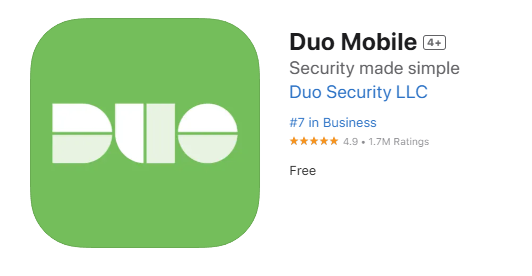
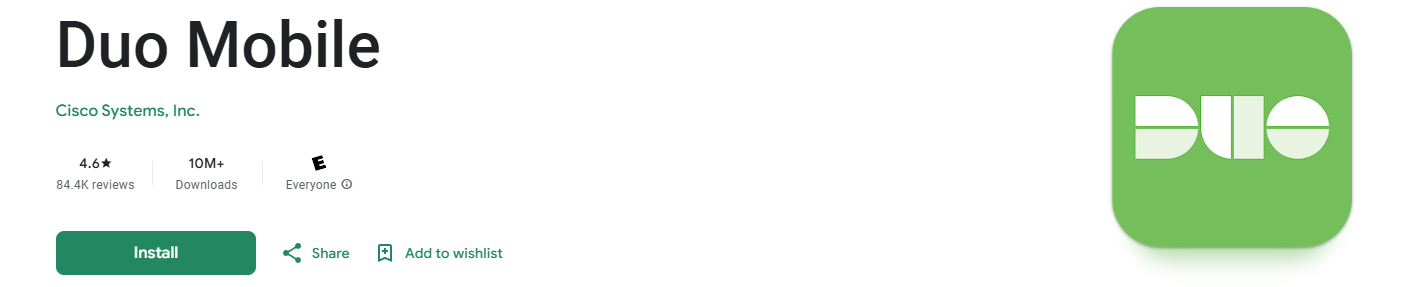
Open the App Store (iPhone) or Google Play Store (Android).
-
Search for Duo Mobile.
-
Tap Download or Install.
Step 2: Sign out and back into your Office 365 Account
- In a web browser such as Google Chrome or Microsoft Edge, go to the following URL: https://myaccount.microsoft.com
- If you see a prompt for "DUO", skip the rest of Step 2 and move onto Step 3, otherwise, continue with Step 2.
- Click your account icon in the upper right, then sign-out.
- Close and re-open your browser.
- Go back to https://myaccount.microsoft.com and sign into your account with your email and password.
Step 3: Follow the prompts on your computer for setting up Duo Mobile
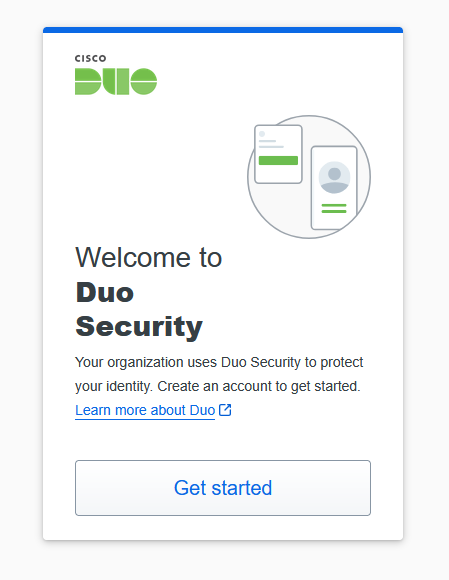
- You will be greeted with the following screen. Click "Get Started"
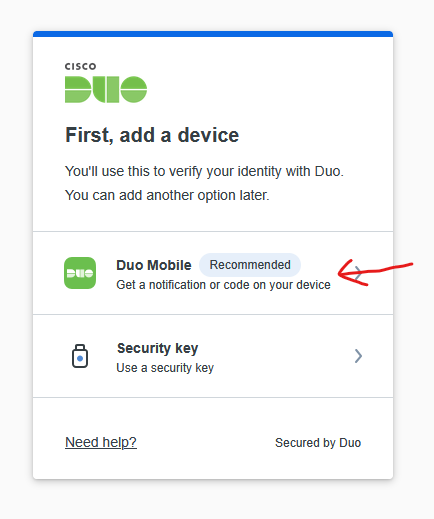
- Click the "Duo Mobile" option.
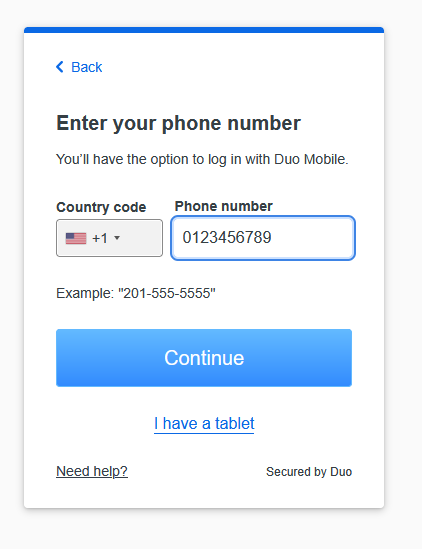
- Enter your phone number. You can utilize your personal phone or a company assigned phone if available. (You will need to always have this device on you to log into your workstation and Office in the future)
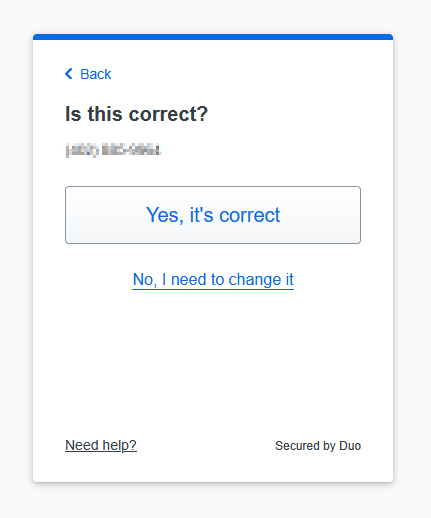
- Click "Yes, it's correct" if your number is accurate.
- Click "Next" once you have Duo Mobile installed on your phone. You should see a QR code on the screen that you will scan with the Duo app on your phone.
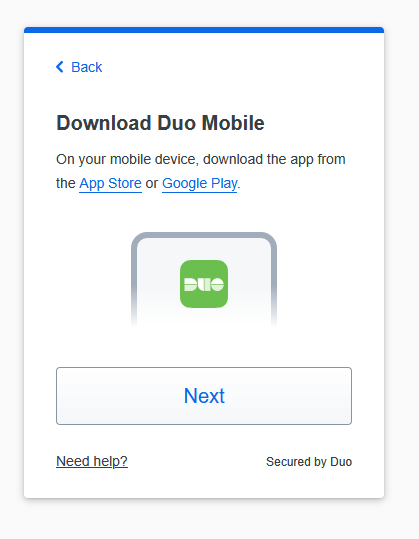
Step 4: Follow these steps on your phone
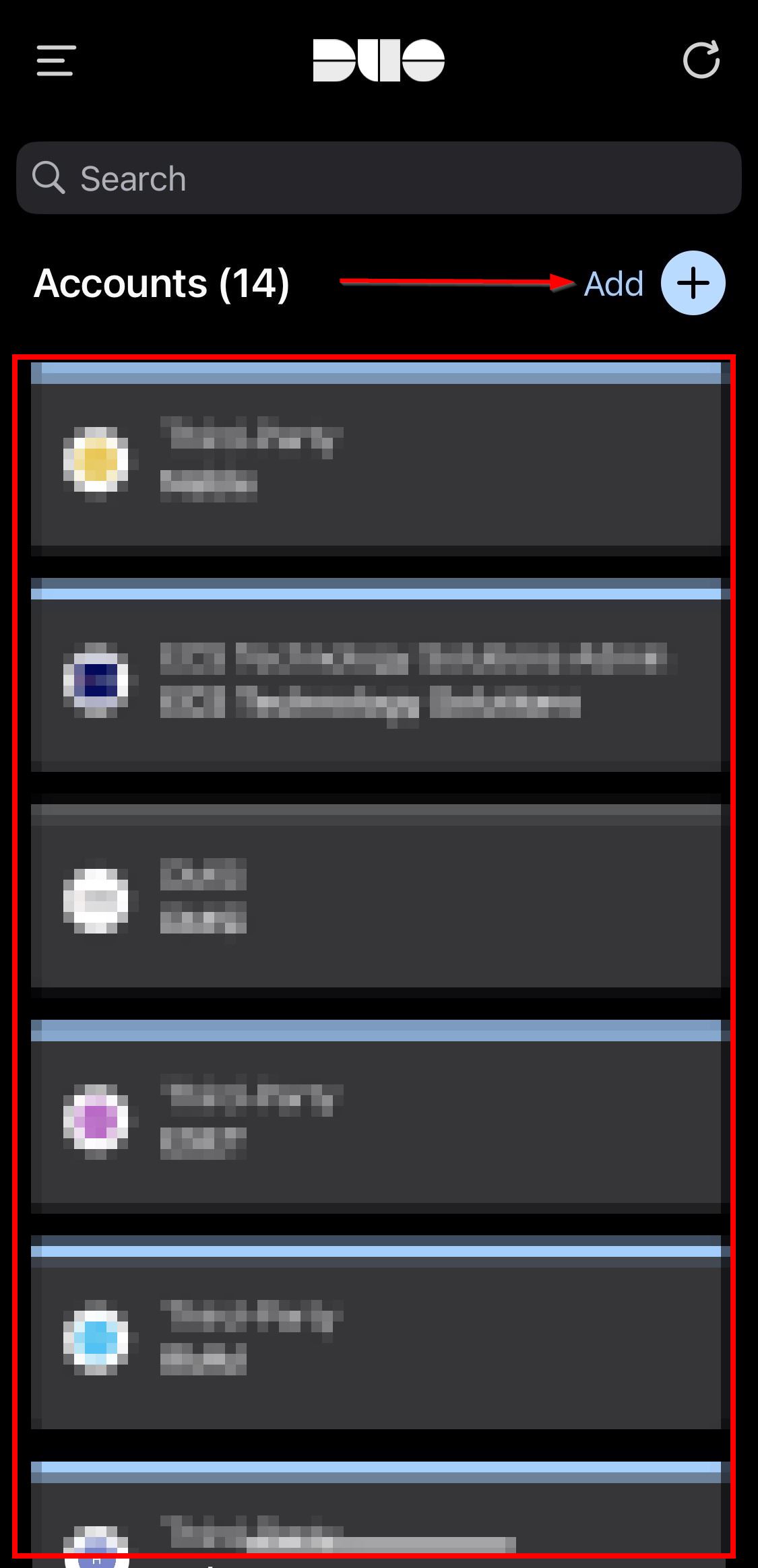
- Open up the Duo Mobile app and click "Add" on the upper right. You may be immediately prompted with the next step if this is a fresh install.
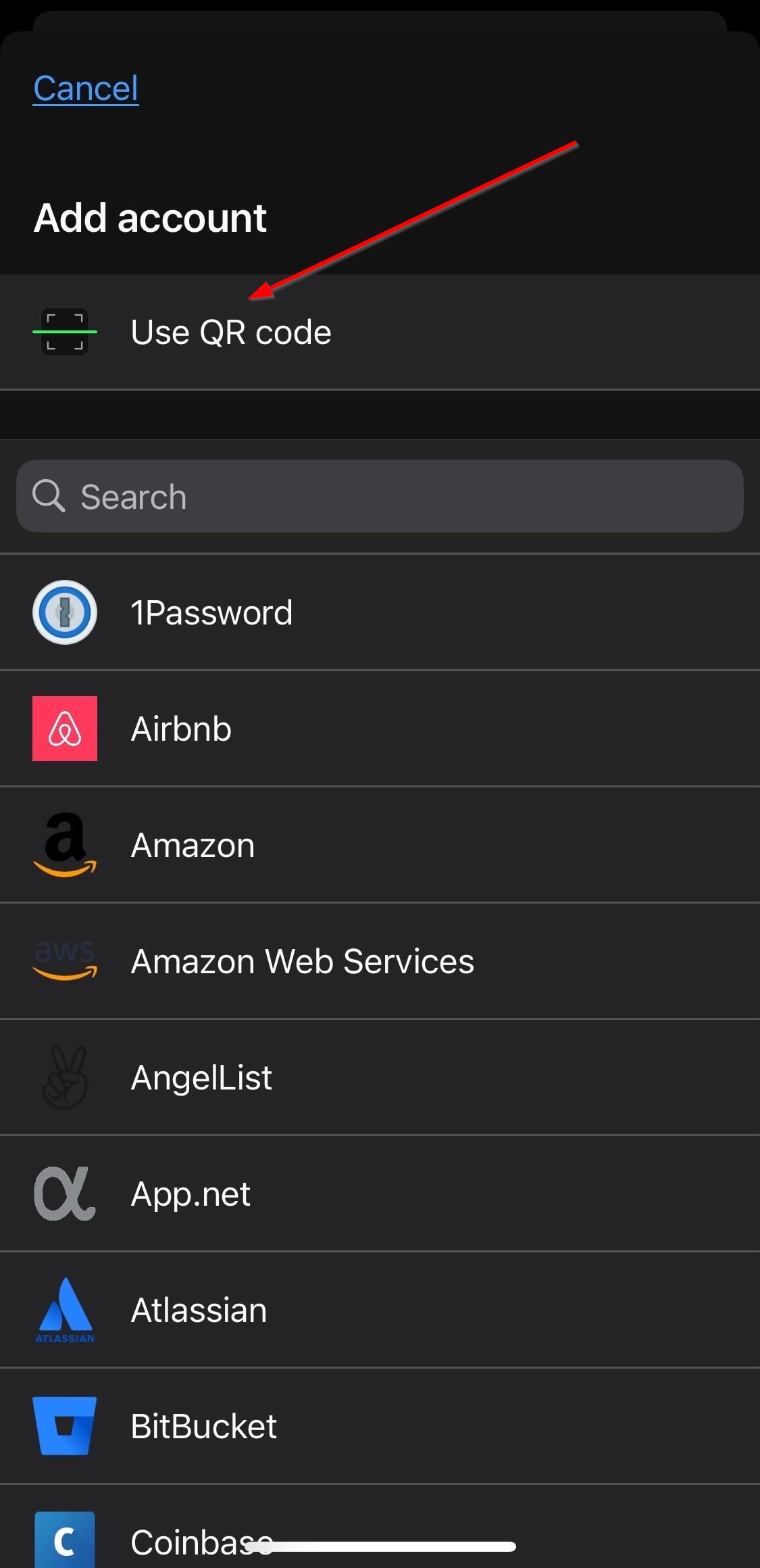
- Click "Use QR Code"
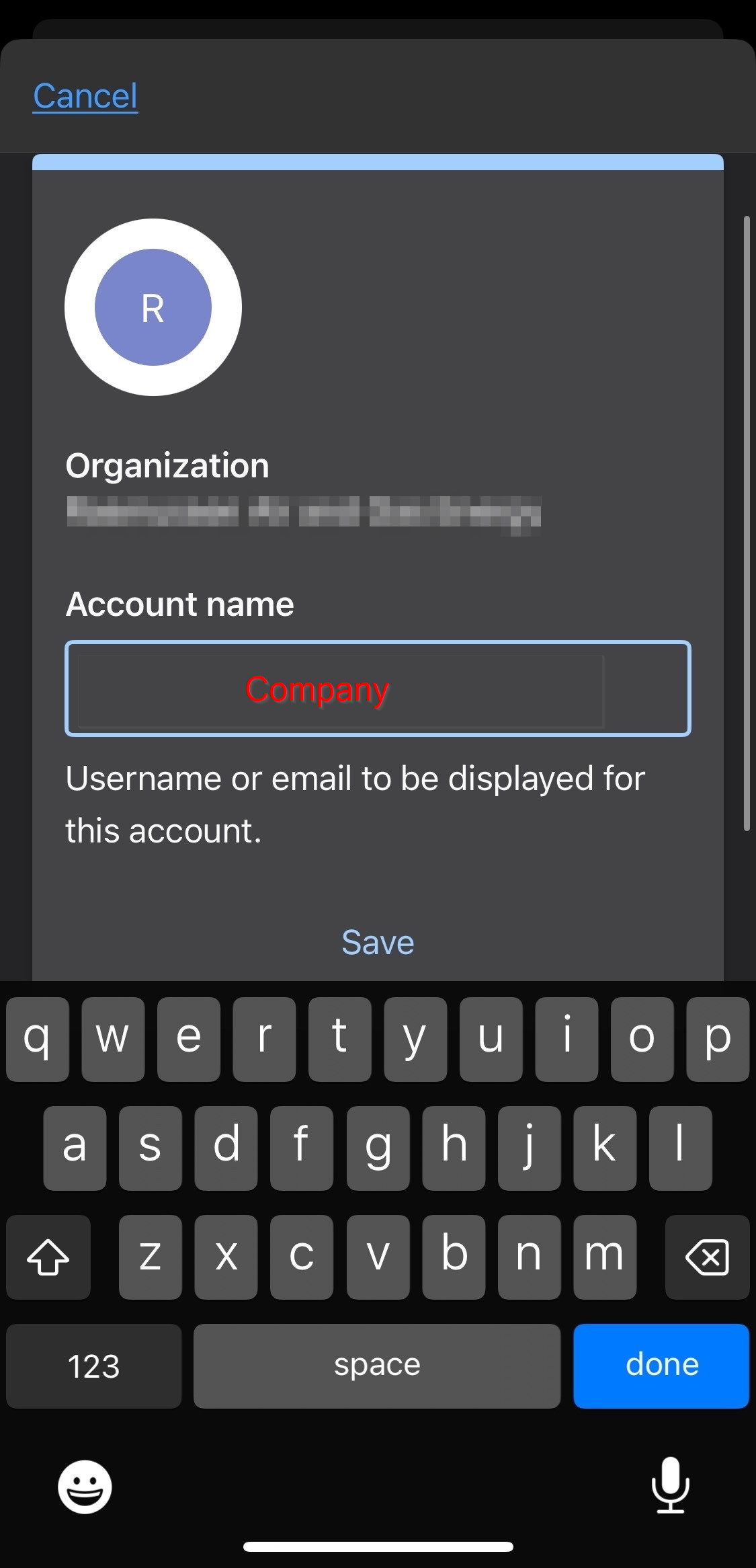
- Scan the QR code on your computer from Duo. This should take you to the following screen on your phone to save the new entry. Name it however you please, and then save it.
Step 5: Finish the prompts on your computer
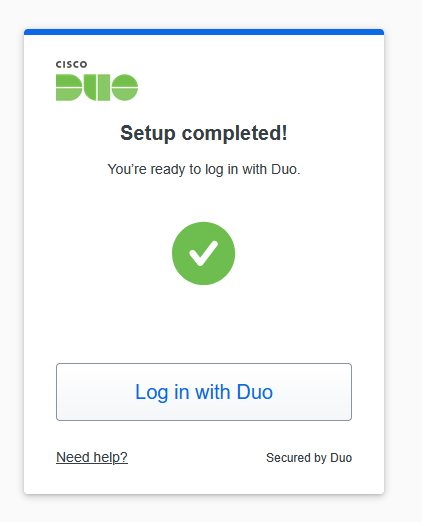
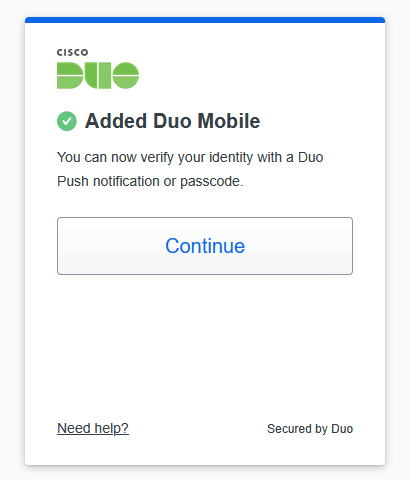
- You should see a page on your computer indicating success, as seen below. Click "Continue"
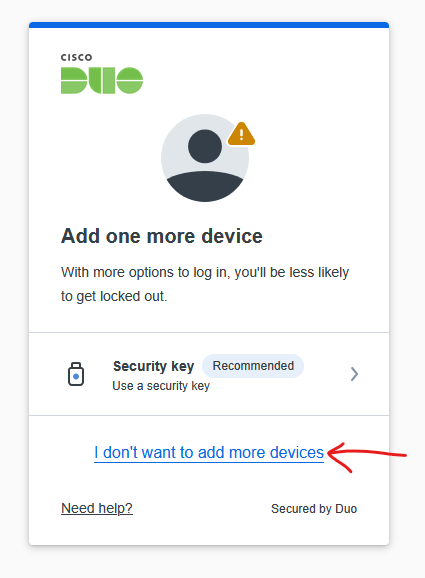
- If you are prompted to add another device, click "I don't want to add more devices"
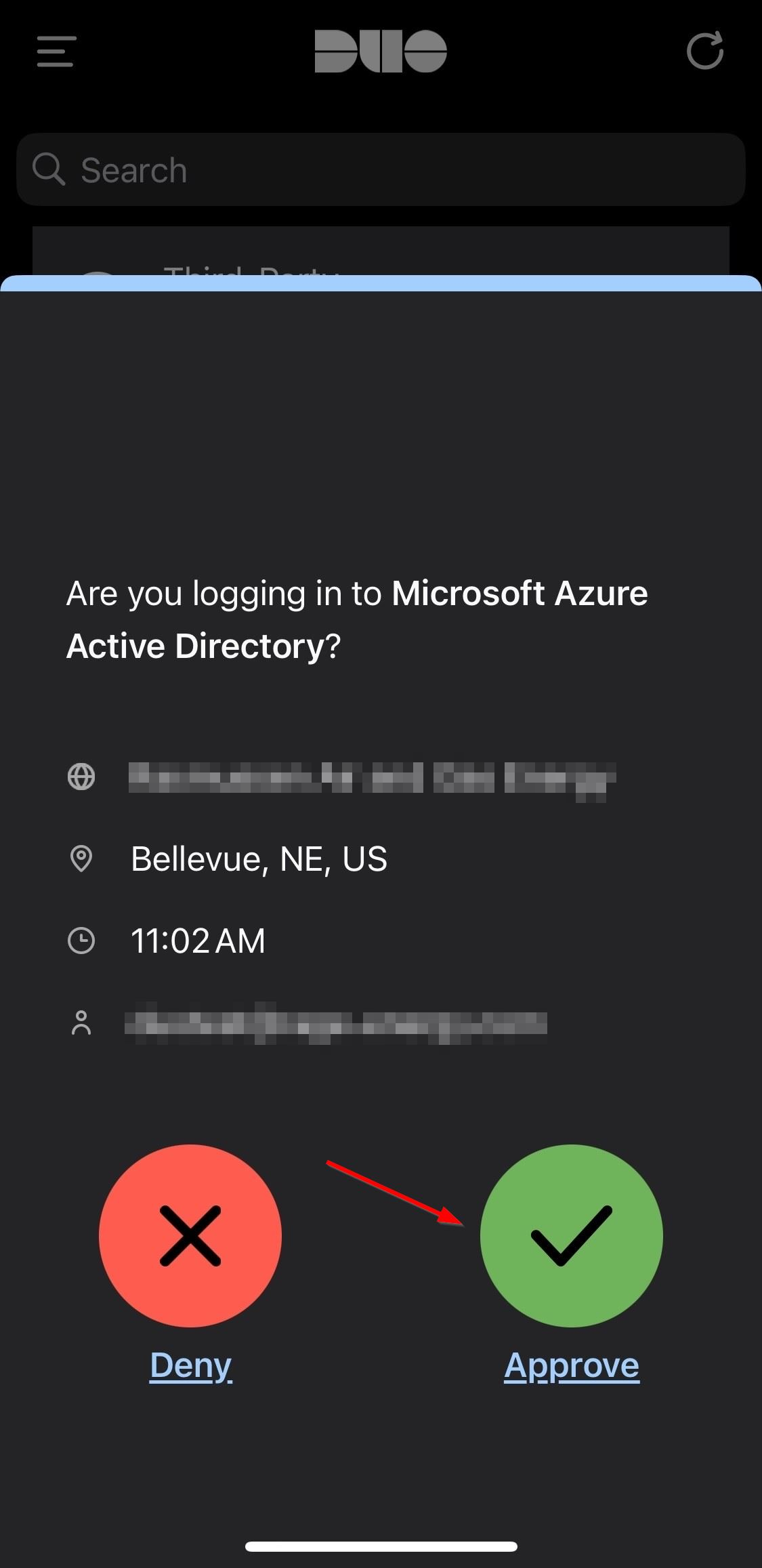
- You're all set! Click "Log in with Duo" and you will receive a push on your phone to approve the login.