
Summary
As of July 19, 2024, CrowdStrike has reported an issue causing Windows hosts to crash due to the Falcon Sensor. This issue is worldwide news currently due to the CrowdStrike Falcon platform being heavily utilized in many large organizations. As of posting, CrowdStrike has stated that this is caused by a software defect, and is not indicative of a cyber attack. Our managed customers at ECS are not directly impacted by this software defect, as ECS implements different technologies to cover this functionality. This alert provides details on the symptoms, affected systems, and steps for remediation if necessary. The issue is isolated to specific Windows hosts and does not impact Mac or Linux systems.
Here is the Official CrowdStrike KB https://supportportal.crowdstrike.com/s/article/Tech-Alert-Windows-crashes-related-to-Falcon-Sensor-2024-07-19
Tech Alert | Windows crashes related to Falcon Sensor | 2024-07-19
Published Date:Jul 19, 2024
Phishing Warning
It has been reported that phishing scammers have pivoted to impersonating CrowdStrike support, and are actively calling out and executing phishing attacks. The callers will pretend to be CrowdStrike and may help you get systems online, but will instruct users to take additional actions that may compromise their systems - leading to damages. Please remember that phone numbers are not authenticated, and CrowdStrike support is probably very busy right now - do not trust unsolicited calls from CrowdStrike even if they come from CrowdStrike phone numbers. If you need immediate assistance, call our support at (402) 350 - 0372.
Details
-
Symptoms include hosts experiencing a bugcheck\blue screen error related to the Falcon Sensor.
-
Windows hosts which have not been impacted do not require any action as the problematic channel file has been reverted.
-
Windows hosts which are brought online after 0527 UTC will also not be impacted
-
This issue is not impacting Mac- or Linux-based hosts
-
Channel file "C-00000291*.sys" with timestamp of 0527 UTC or later is the reverted (good) version.
-
Channel file "C-00000291*.sys" with timestamp of 0409 UTC is the problematic version.
Current Action
-
CrowdStrike Engineering has identified a content deployment related to this issue and reverted those changes.
-
If hosts are still crashing and unable to stay online to receive the Channel File Changes, the following steps can be used to workaround this issue:
Workaround Steps for individual desktops, machines, servers, hosts, etc:
Reboot to give CrowdStrike an opportunity to download the reverted channel file. If you continue crashing, then:
-
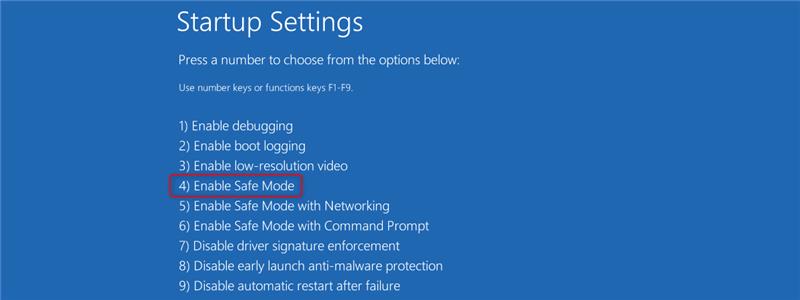
Boot Windows into Safe Mode or the Windows Recovery Environment. You can force the menu for this to appear from the login screen if it loads by holding Shift and clicking Power > Restart, then selecting 4 or F4 to start in safe mode. If windows does not load to the login screen, continue rebooting until recovery mode options are shown, then click Troubleshoot > Advanced Options > Startup Settings > Restart, and select 4.
-
Once started in Safe Mode, navigate to the %WINDIR%\System32\drivers\CrowdStrike directory
-
Locate the file matching “C-00000291*.sys”, and delete it.
-
Restart again normally to leave safe mode.
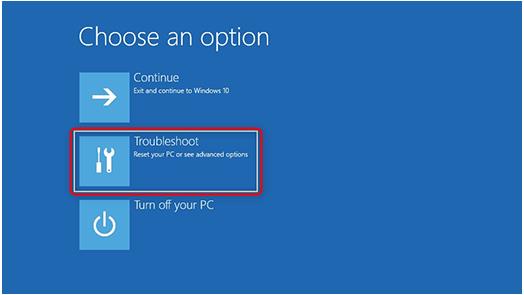
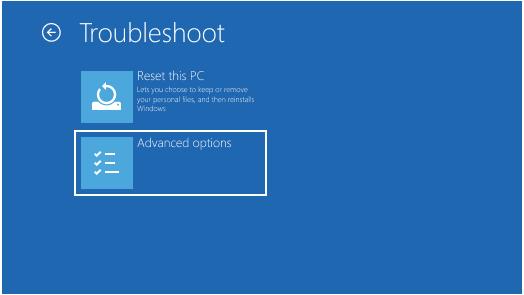
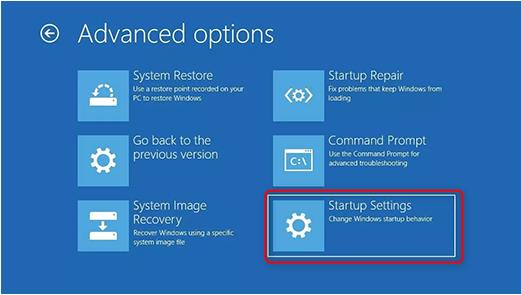
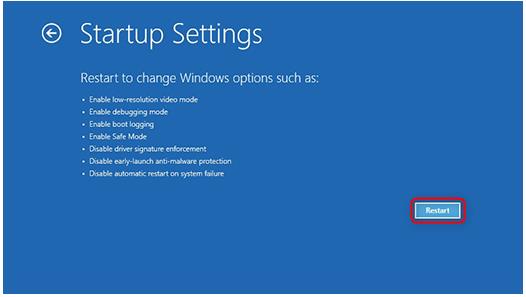
Note: Bitlocker-encrypted hosts may require a recovery key, your IT team should have the recovery key in one of these locations: Active Directory, EntraID, your company's RMM tooling, or your company's Documentation System.
Workaround Steps for public cloud or similar environment including virtual:
Option 1:
-
Detach the operating system disk volume from the impacted virtual server
-
Create a snapshot or backup of the disk volume before proceeding further as a precaution against unintended changes
-
Attach/mount the volume to to a new virtual server
-
Navigate to the %WINDIR%\\System32\drivers\CrowdStrike directory
-
Locate the file matching “C-00000291*.sys”, and delete it.
-
Detach the volume from the new virtual server
-
Reattach the fixed volume to the impacted virtual server
Option 2:
-
Roll back to a snapshot before 0409 UTC.
Workaround Steps for Azure via serial (Other admins report 15+ reboots may be needed for this method to function)
-
Login to Azure console --> Go to Virtual Machines --> Select the VM
-
Upper left on console --> Click : "Connect" --> Click --> Connect --> Click "More ways to Connect" --> Click : "Serial Console"
-
Step 3 : Once SAC has loaded, type in 'cmd' and press enter.
-
type in 'cmd' command
-
type in : ch -si 1
-
-
Press any key (space bar). Enter Administrator credentials
-
Type the following:
-
bcdedit /set {current} safeboot minimal
-
bcdedit /set {current} safeboot network
-
-
Restart VM
-
Optional: How to confirm the boot state? Run command:
-
wmic COMPUTERSYSTEM GET BootupState
-
For additional information please see this Microsoft article.
Additional options for recovery:
We recommend customers that are able to, to restore from a backup from before 19:00 UTC on the 18th of July.
-
Customers leveraging Azure Backup can follow the following instructions:
How to restore Azure VM data in Azure portal
-
Alternatively, customers can attempt to repair the OS disk offline by following these instructions:
Attach an unmanaged disk to a VM for offline repair
-
Disks that are encrypted may need these additional instructions:
Unlocking an encrypted disk for offline repair
Once the disk is attached, customers can attempt to delete the following file.
Windows/System/System32/Drivers/CrowdStrike/C00000291*.sys
The disk can then be attached and re-attached to the original VM.
Proactive steps
ECS has determined that 3rd party proactive steps for this issue are not feasible, due to how quickly the issue manifests on impacted systems. Either of these potential solutions would need to be deployed before the patch. Since CrowdStrike deploys patches quickly - and has already released a fixed version, you are unlikely to need these. However, if you wish to create a proactive solution for your organization - these options are a starting point:
- PowerShell file system watcher (50% success rate, moderate difficulty): Use powershell to create a System.IO.FileSystemWatcher and configure it to watch the %WINDIR%/System/System32/Drivers/CrowdStrike/ folder, when it detects a file with the name C-00000291*.sys, check if its timestamp is later than 0527 UTC - if it isn't, delete that file.
- Custom file system driver (100% success rate, very difficult): Utilizing Windows Driver Kit (WDK), create a new driver that intercepts file write operations and inspects them to match against the known bad file using name and timestamp - and blocks the attempt.