
This can be integrated with Outlook to send encrypted emails, ensuring only authorized individuals can read the contents.
Prerequisites
- Subscription: You need an Office 365 subscription that includes Outlook and Azure Information Protection. Alternatively, you can procure a standalone license for the features.
- Azure Information Protection: You need to have Azure Information Protection set up. Check Microsoft's official documentation for more information on how to set it up.
Steps to Encrypt an Email
Encrypt an Email using Outlook
- Open Outlook and start composing a new email.
- In the Options tab, click on the Encrypt button
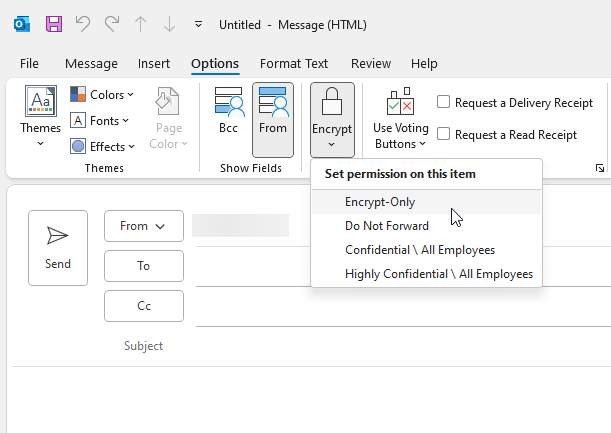
- From the dropdown list, select the level of protection you want for your email. These are what the defaults mean:
- Encrypt-Only: Encrypts the message and its contents
- Do Not Forward: Encrypts the content and restricts it to be viewed only by the original recipients. Recipients cannot forward, print, or copy the content.
- Confidential \ All Employees: Encrypts and allows users within the same organization limited access rights
- Highly Confidential \ All Employees: Encrypts and allows users within the same organization even more limited access rights
- Described further here: https://learn.microsoft.com/en-us/previous-versions/azure/information-protection/configure-policy-templates
Encrypt an Email using Outlook Web App
- Open your browser and log into Outlook Web App.
- Click on New to compose a new email.
- In the Options tab, click the lock icon
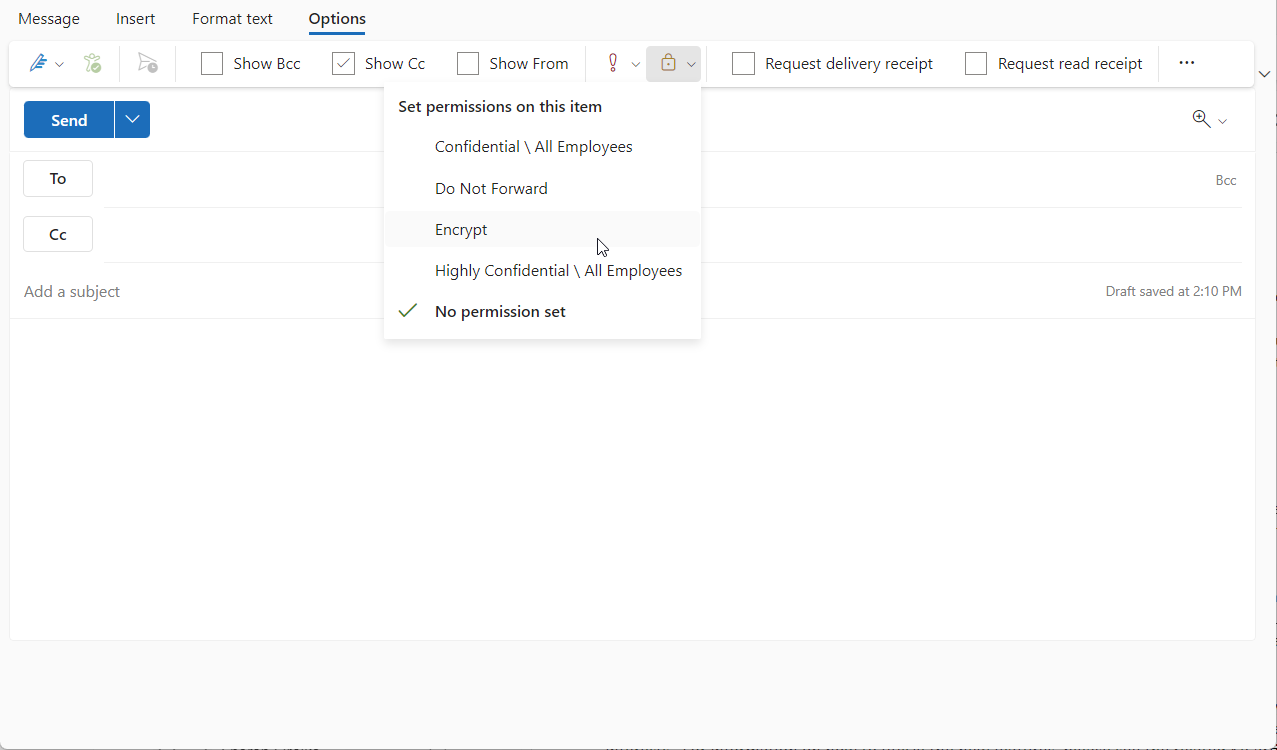
- Choose the level of protection you want for your email:
- Encrypt-Only: Encrypts the message and its contents
- Do Not Forward: Encrypts the content and restricts it to be viewed only by the original recipients. Recipients cannot forward, print, or copy the content.
- Confidential \ All Employees: Encrypts and allows users within the same organization limited access rights
- Highly Confidential \ All Employees: Encrypts and allows users within the same organization even more limited access rights
- Described further here: https://learn.microsoft.com/en-us/previous-versions/azure/information-protection/configure-policy-templates
Please note, the recipient must have permissions to decrypt and read the email. If they're using Outlook (or a compatible application), the process is seamless. If they're not, they'll get instructions on how to decrypt the email.
What does it look like for the recipient?
As long as their email provider supports it, encrypted emails are delivered seamlessly. Otherwise, they will receive an email containing a link to a secure portal to view the message. The message also contains instructions for message retrieval.
Conclusion
Azure Information Protection and Outlook together provide a powerful tool for ensuring email privacy and security. By setting the correct permissions, you can ensure that your confidential and sensitive emails can only be read by the intended recipients.