
It can significantly impact your experience with wireless, and the performance and reliability of wireless networks. This article provides a comprehensive guide to diagnosing and resolving issues related to wireless flapping.
Understanding Wireless Flapping
Wireless flapping often occurs when a wireless device frequently disconnects from and reconnects to a network, or when it rapidly switches between multiple Access Points (APs). This can be due to a variety of reasons including signal interference, network congestion, improper AP placement, or issues with the device's wireless adapter.
Common Causes
- Signal Interference: Other wireless devices, electronic gadgets, physical obstacles, and other sources of electromagnetic interference
- Network Congestion: Overlapping channels in densely populated network environments
- Access Point (AP) Placement: Incorrect placement of APs can lead to weak signals and overlapping coverage areas
- Device Configuration: Settings on the user's device, like roaming aggressiveness, may cause frequent switching between APs
- Hardware Issues: Faulty wireless network adapters or outdated firmware can contribute to unstable connections
Troubleshooting Wireless Steps
-
Check for Signal Interference: Review the environment. Look around to identify and eliminate potential sources of signal interference. This could include other wireless devices, microwaves, or physical barriers. Be conscious of materials that can reflect or refract radio signals - and remember that the radio signals used by most Wi-Fi are 6cm (5ghz) and 12cm (2.4ghz). If you have a cage of metal that has openings that size or smaller, it can act similarly to a solid barrier to the radio waves (It's sometimes called a Faraday cage).
-
Analyze AP Placement: Ensure APs are strategically placed to provide optimal coverage and reduce overlap. Tools like Wi-Fi analyzers can be helpful - if you don't want to purchase a specialized tool you can get most of the information using apps on your Android or iOS device, though most phones try to save battery life by not checking Wi-Fi statistics frequently - on Android you can enable developer mode and reconfigure it to check more frequently in your settings.
- Keep in mind that your access points are unlikely to be the only devices broadcasting wireless networks. Printers with Wi-Fi Direct features, IoT devices, and hotspots will all broadcast Wi-Fi networks using channels. Each device, network, and even different SSIDs (Wi-Fi names) will increase the noise in your area - so for ensuring a great signal make sure to keep these to a minimum by disabling features that aren't needed and condensing SSIDs where possible.
-
Adjust AP Settings:
- Channel Configuration: The Wi-Fi analyzer discussed previously will allow you to see channel overlap easily - if you're noticing that there is a lot of noise on one channel you can change the channel on your APs to reduce overlap and signal interference. Keep in mind that these channels represent slightly different radio waves, so nearby channels can still cause noise for their neighbors. For example, Channel 1 and Channel 2 on 2.4ghz are very close, they'll cause noise for one another. If Channel 1 is always busy because it's the default for your IoT network you could move Wi-Fi to Channel 6 instead.
- Power Settings: Adjust the transmit power of APs to minimize overlap
Ensure good Signal to Noise Ratio (SNR) and Received Signal Strength Indicators (RSSI):- For a performant wireless network, you should seek to maintain at least the following metrics on these statistics. If your network is incapable of reaching these consistently, you either need to change your AP settings or add more APs.
- SNR: For most applications, you should seek a SNR of above 25. If you use applications that require constant connection like video chat, you should ensure devices remain above 40.
- RSSI: For most use cases, -60 to -70dBm is the cutoff point where RSSI will begin causing issues. You want to see this at -30dBm to -60dBm.
-
Update Firmware and Drivers: In general, you should ensure that devices on your network (Modems, Firewalls, Routers, Switches, APs and the network adapters on devices) are up-to-date with the latest firmware and drivers.
-
Modify Device Settings: Devices have varying levels of configuration / settings available for modifying their behavior regarding wireless networks. Some network adapters and drivers are more capable than others, so consider this a generalized guide. On Windows devices, you can find these settings by going to Device Manager > Network Adapters > (right click your wireless adapter and go to Properties) > Advanced.
-
- Before changing settings: Make sure that your device isn't experiencing temporary issues that can be solved without changing these settings. The standard settings are usually optimal for general use, you should only need to changing the settings if you're frequently in a location where the defaults cause problems (otherwise you may cause more problems for yourself by changing them)
- Reboot your computer and monitor to see if the issue remains
- If they aren't automatic - check to ensure your DHCP, DNS, and other settings on the wireless adapter in windows are correct
- Run a system file check in CMD - "sfc /scannow"
- Reset your TCP/IP stack in CMD - "netsh int ip reset"
- Repair your Windows Installation in CMD - "DISM /Online /Cleanup-Image /RestoreHealth"
- Update or reinstall your wireless drivers
- Check in Event Viewer > System and Event Viewer > Application to see if there are obvious errors related to the behavior you're seeing
- Roaming Aggressiveness: On devices experiencing flapping, try adjusting the roaming aggressiveness setting. Decreasing this setting may help by making your device not seeking out a new AP as quickly. If you're right in the middle of two APs that are "OK", decreasing this should let your machine settle for one of them instead of always seeking a better connection.
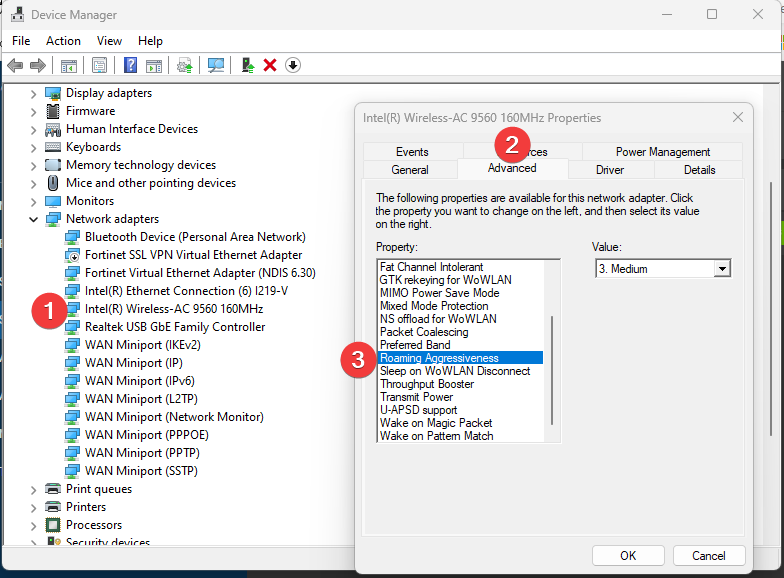
- U-APSD support: This is a battery saving measure that can be disabled to get a performance boost, the feature causes the Wi-Fi connection to "sleep" regularly to conserve power.
- Preferred Band: You can use this to select your preferred band, 5ghz is faster but more easily impacted by barriers, 2.4ghz is slower but you're more likely to have a good enough signal strength for typical office tasks. If you use internet intensive applications and 2.4 won't cut it - it may be worth setting 5 as the preferred band
- Other Settings: Your system will likely have other settings available. As general guidance, if you are experiencing performance issues you should disable features that seem like they are designed to conserve power, sleep or temporarily disable devices, or limit your connection (though these may have useful applications in the broader scope of the network, like reducing noise).
- Before changing settings: Make sure that your device isn't experiencing temporary issues that can be solved without changing these settings. The standard settings are usually optimal for general use, you should only need to changing the settings if you're frequently in a location where the defaults cause problems (otherwise you may cause more problems for yourself by changing them)
-
Network Monitoring and Logs: Monitor network logs for patterns or errors that can indicate the cause of flapping.
-
Consult with Network Professionals: If issues persist, consult with network specialists for a deeper analysis.
Preventative Measures
- Regularly update network hardware and software.
- Conduct periodic network assessments to identify potential issues.
- Monitor your network and endpoint devices for connectivity issues.
Conclusion
Wireless flapping can be a complex issue, but through methodically troubleshooting wireless and regular network maintenance, it is often resolvable. By understanding the common causes and following the steps outlined above, you can ensure a more stable and reliable wireless network experience.