

Introduction
As part of our commitment to providing top-notch security, we've partnered with ThreatLocker to provide application control for supported devices. This tool plays a crucial role in keeping your digital environment safe from malware and other security threats. While you might notice some new prompts or changes in how your applications behave, these are all part of how ThreatLocker protects you. Let’s walk through what you can expect and how you can seamlessly work with ThreatLocker.
What is ThreatLocker?
ThreatLocker is a security tool we use to ensure that only safe and approved software runs on your computer. It helps prevent unknown or potentially harmful programs from causing trouble.
Key Features of ThreatLocker
Allowlisting – Allow the software you need and block ransomware, viruses, and other unwanted software from running.
Ringfencing – Limit how your applications interact and stop the weaponization and exploitation of trusted applications.
Network Control – Host based firewall that dynamically closes and opens ports only when required to stop rogue devices from accessing your network.
What to Expect
Here’s a simple breakdown of what happens when ThreatLocker is working on your computer:
1. Learning Mode:
- Initial Setup: When ThreatLocker is first set up, it enters a "learning mode." During this period, it observes the programs you commonly use to understand which are safe and should be allowed to run.
- Alerts and Prompts: You might see messages asking whether you trust certain applications. Your responses help ThreatLocker learn and make better security decisions.
2. Secured Mode:
- Daily Use: Once the initial learning period is over, ThreatLocker switches to "secured mode." In this mode, it blocks any software that hasn’t been pre-approved. This is how it protects your computer from unknown or malicious software.
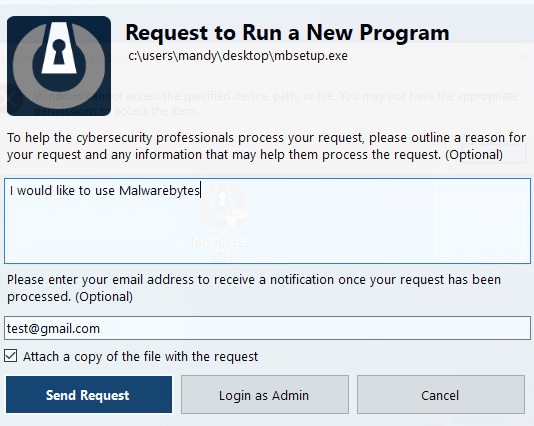
- Blocked Applications: If you try to use software that ThreatLocker doesn’t recognize, it won’t run immediately. Instead, you’ll receive a notification. Don’t worry, though; you can easily request permission to use it through a simple prompt, and we'll review it swiftly. The picture below is an example of what this will look like.
- Handling Delays: If your application is blocked, there might be a short delay while we check it out. We appreciate your patience—these steps are crucial for keeping your system safe.
3. Installation Mode:
- Use Case: If you are attempting to install a new program and receive the above popup, please notate in the "comment" box that you are running an installer. This allows us to put Threatlocker in Installation mode which catalogs every new file and is a much faster process.
Why It’s Good for You
Using ThreatLocker means you're much safer from viruses, ransomware, and other cyber threats. Here’s why that’s great news:
- Protection From Threats: You’re far less likely to encounter harmful software.
- Peace of Mind: You can use your computer daily, knowing that only approved and safe applications are running.
Tips for a Smooth Experience
- Report Any Issues: If you believe an application should be allowed or something isn’t working as it should, let us know! We’re here to help.
- Patience is Key: During the learning phase, and occasionally afterwards, you may notice prompts or temporary blocks. These are normal and an essential part of keeping your computer secure.
Conclusion
ThreatLocker is a powerful tool that helps ensure your computer only runs software that’s safe and approved. While it might take a little getting used to, remember that these steps are vital for protecting your digital space. If you have any questions or need assistance with anything blocked by ThreatLocker, don't hesitate to contact us. We’re here to make sure your experience is secure and hassle-free.
Need Help?
For any questions or further assistance with ThreatLocker, feel free to reach out. We’re here to ensure your safety and satisfaction with our services.